Connect NetClaw Mobile from the HUD

Opening a mobile app and finding its scanner should be enough to begin connecting it. The next step should be visible in the workspace you already use.
NetClaw Mobile already had a scanner and a device enrollment flow. Generating the code still required knowing the terminal command. That made a working capability harder to discover than it needed to be.
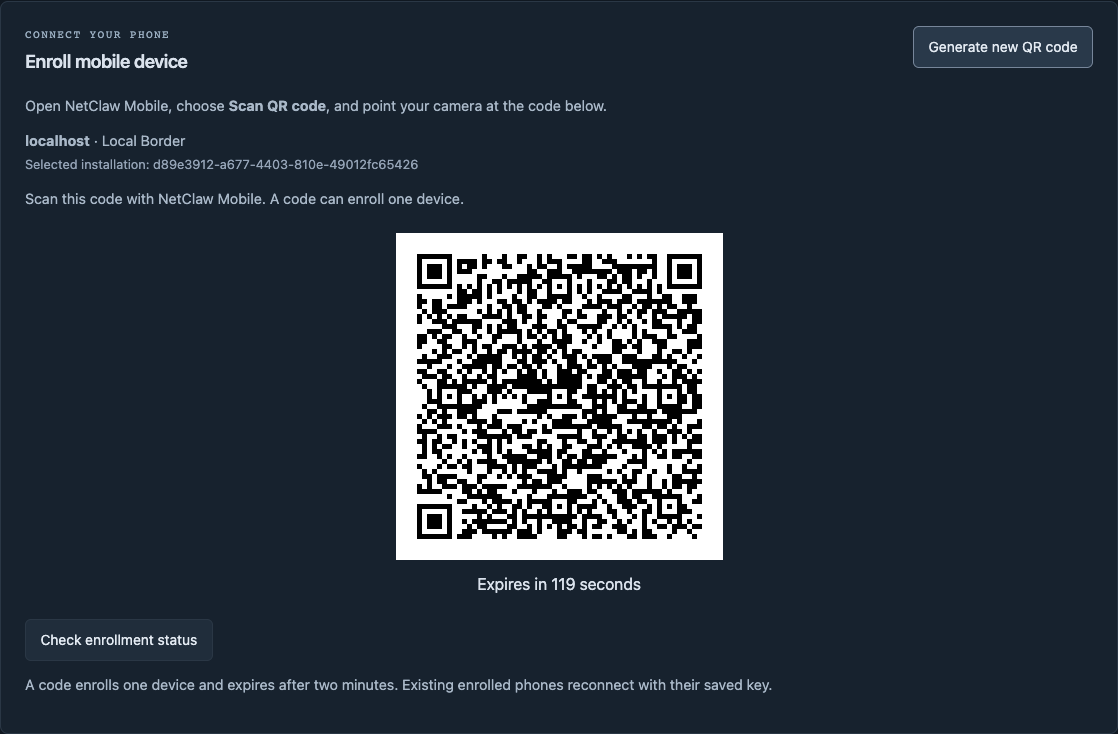
NetClaw 1.18.6 and VS Code extension 1.6.1 put Generate QR code directly in the HUD's Mobile panel and the extension's Mobile & edge panel. Select your Border, open Mobile, and generate a code when your phone is ready. On the phone, choose Scan QR code and scan the displayed image.
The selected destination is visible beside the code. You do not need to copy a host, port or enrollment token from a terminal into the app.
Mobile availability — November 5, 2026: The phone changes in this update target NetClaw Mobile 1.0.4, build 7. That build has been submitted to Apple and is waiting for review. The public App Store listing currently offers 1.0.2; the 1.0.4 update is not yet available there.
From a visible button to a connected phone
In the HUD, open Mobile and select Generate QR code. The panel shows the destination and a countdown. Open NetClaw Mobile, select Scan QR code, and scan it. The panel reports when the device has enrolled and clears the code.
The VS Code path follows the same sequence. Connect the extension to your Border, open Mobile & edge, and select Generate QR code. Enrollment status and the reported mobile device inventory are available in that panel as well.
Each code enrolls one device and expires after two minutes. If time runs out, generate a new one when the phone is ready. A lost response does not cause the client to mint another code automatically: Check enrollment status resolves the original request first.
The controls also explain when enrollment is unavailable. A visible button does not replace the Border's listener and trusted transport setup. The selected installation has to be ready before it can issue a usable code.
Keep the phone's identity after enrollment
Successful enrollment gives the app a saved device identity. Reopening the app reconnects with that identity, so an ordinary restart does not require another scan.
The QR flow preserves the existing device key checks and destination binding. A code is an enrollment credential, so the interface keeps it temporary: it is cleared when the enrollment completes, expires, or its view is hidden. Checking status does not retrieve another copy of the QR.
The app also respects the capabilities its selected Border advertises. Enrollment connects the phone to that installation; it does not bypass the review required for an operation.
Test the journey through the real interfaces
I wanted this verified with the actual HUD, the actual VS Code extension, and a running iPhone simulator.
The acceptance runs generated real codes from both interfaces, decoded their images in the simulator, and followed the production onboarding and enrollment screens. The app reached its connected screen and reconnected with the same saved key. The originating panels reported completed enrollment and removed their displayed codes.
We then loaded the exact 1.6.1 package with a copy of an existing VS Code profile. Its Overview and Mobile panels connected successfully, while the original profile, saved references, settings and other extensions remained unchanged. This package check opened the controls without generating another code or running an operation. The earlier enrollment runs remain attached to their recorded development builds.
The simulator test uses image decoding and a simulator key store. It does not establish physical camera or hardware Secure Enclave behavior. That distinction belongs beside the result, even when the rest of the journey is real.
This is a small interface change with a practical effect: the route from desktop workspace to phone is now visible where the operator is working.
Explore NetClaw, browse the source repository, or find the NetClaw extension in Visual Studio Marketplace. Use compatible updated Border and Mobile builds for the enrollment flow described here.