NetClaw Comes to Visual Studio Code

NetClaw has a Visual Studio Code extension.
You can put your network engineering coworker beside the files you are already editing: a Python script, a device inventory, an automation project, or the notes from an investigation. Open a conversation, inspect your installation, search its knowledge, review a Testbed change, or look at a security policy without leaving the editor.
The extension is NetClaw 0.1.1, published by NetClaw on the Visual Studio Marketplace. That is Microsoft's marketplace name; the extension itself is for Visual Studio Code. Its version is independent of the NetClaw runtime and mobile app.
This release brings together the original VS Code integration from spec150 and the broader experience work from spec151. The result is a substantial operations workbench with cards, clear forms, search, filters, native review dialogs and a consistent place to understand which installation you are using.
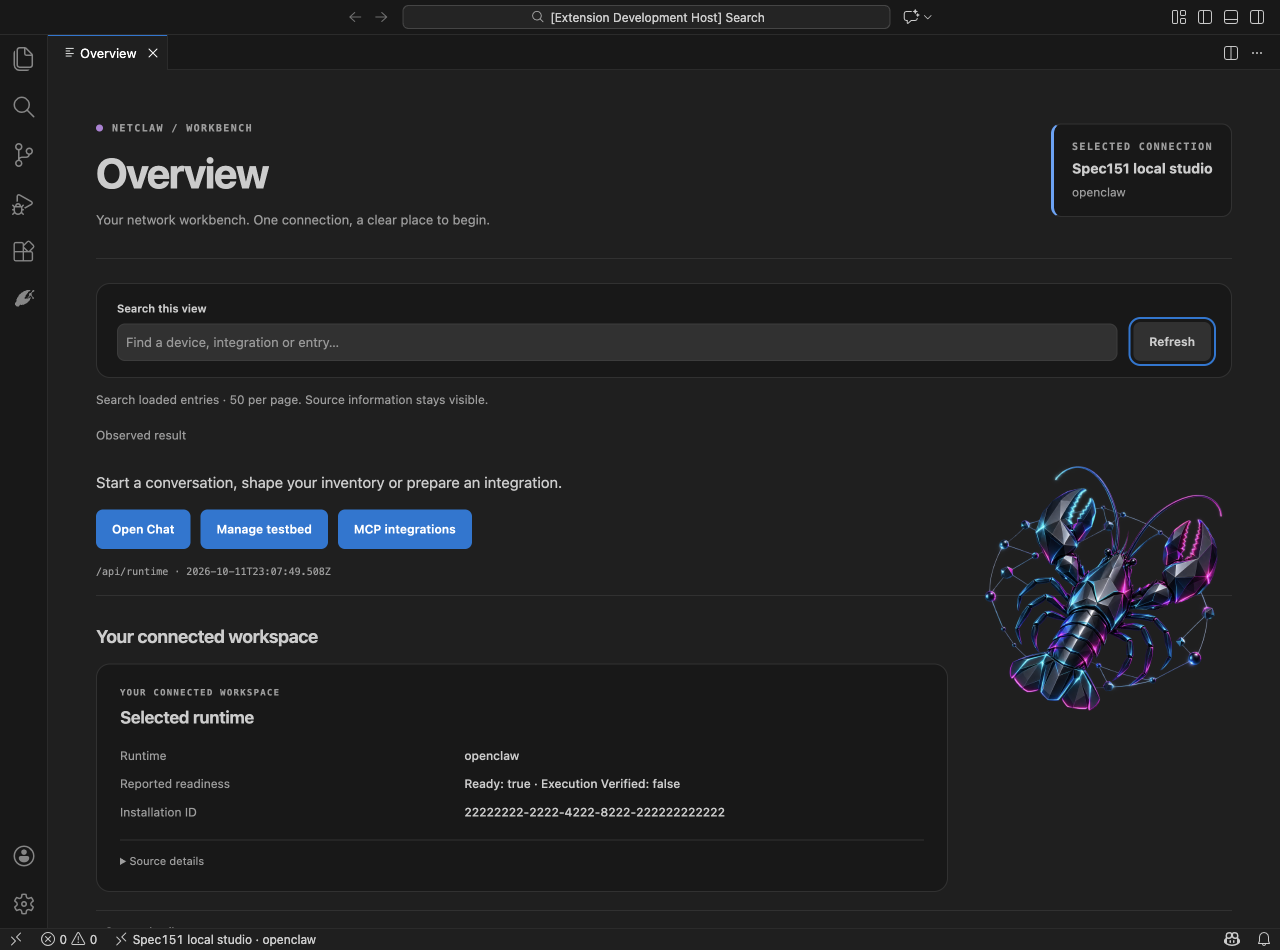
Bring the NetClaw you already run
The extension connects to an existing NetClaw through its running HUD API. Your selected installation keeps its runtime, configured model, tools, knowledge and operational rules. OpenClaw and Hermes remain the available harness choices, with controls reflecting the capabilities that the selected runtime supports.
That connection deserves to be visible. A lab on your Mac, a NetClaw inside WSL and an installation reached through Remote SSH are different places to execute work. Each saved connection has a friendly label, an API address and a reviewed installation identity. The label might be My Mac lab or WSL NetClaw; it is a name for you to recognize, rather than a credential or a special server identifier.
The address is the HUD API endpoint, normally http://127.0.0.1:3001. The browser HUD normally uses port 3000. Those two ports have different jobs, and the connection instructions now make that distinction explicit.
On a remote extension host, loopback belongs to that host. Open the intended WSL distribution or Remote SSH workspace first, then connect to the NetClaw there. Review the returned identity before binding. That small moment establishes the target for everything that follows.
An interface that feels at home in the editor
My feedback during this work was straightforward: I liked the blue action buttons, the search and the filters. I wanted the text, forms and organization to receive the same attention. An operations page should make the next useful action easy to find and the current state easy to understand.
The new workbench uses shared cards, persistent field labels, useful descriptions and consistent spacing. Pages follow the editor's light, dark and high-contrast themes. A narrow panel still needs to work, as does a larger font or keyboard navigation. Unsaved Testbed text survives a theme change, and switching between guided and advanced editing gives you an explicit choice about your draft.
There is visual personality here, including bundled artwork and an interactive Three.js BGP view. The topology view follows reported BGP relationships and includes a readable list. You can select nodes, inspect the information, zoom and reset the view. It represents the sessions the source reports; physical cabling and device health require their own evidence.
That is the approach across the interface: make useful information easier to see, and keep its meaning intact.
Chat, Canvas and knowledge beside your files
The conversation is still central. Chat reaches the selected NetClaw runtime through an extension-owned conversation. You choose context explicitly, including content from the editor, and use the model or effort controls that the runtime supports. The connection and conversation ownership remain attached to that work.
Canvas gives an investigation room to branch. Keep one line of inquiry focused on routing, another on the intended design, and another on the next question you want answered. Investigations can be saved locally and exchanged through reviewed Canvas import and export. Each lane has its own owned NetClaw conversation.
The local Avatar view brings the bundled John and NetClaw characters alongside the same Chat. It gives the conversation another presentation, with local character controls. Voice and hosted video are outside this extension release.
RAG brings your own documentation into the same workspace. Browse collections and documents, upload a selected file, and search for cited passages. A maintenance runbook or a vendor design guide becomes much more useful when you can inspect its source next to the script or inventory you are working on.
An upload being accepted is only the beginning of ingestion. Refresh to see its indexing status, and inspect the citations and staleness information when you retrieve material. A document can explain the intended design; a live observation establishes what the network is doing now.
The Testbed becomes something you can manage
The Testbed is one of the most practical improvements in this release. It is the inventory behind a great deal of network automation, and a page that merely exposes a YAML file leaves a lot of useful work to the operator.
You now have device cards and guided forms to create, read, update and remove devices, alongside an advanced YAML editor when you need the underlying document. Find a device by name, platform or address. Review its selected connections. Make the change in the form that suits the task.
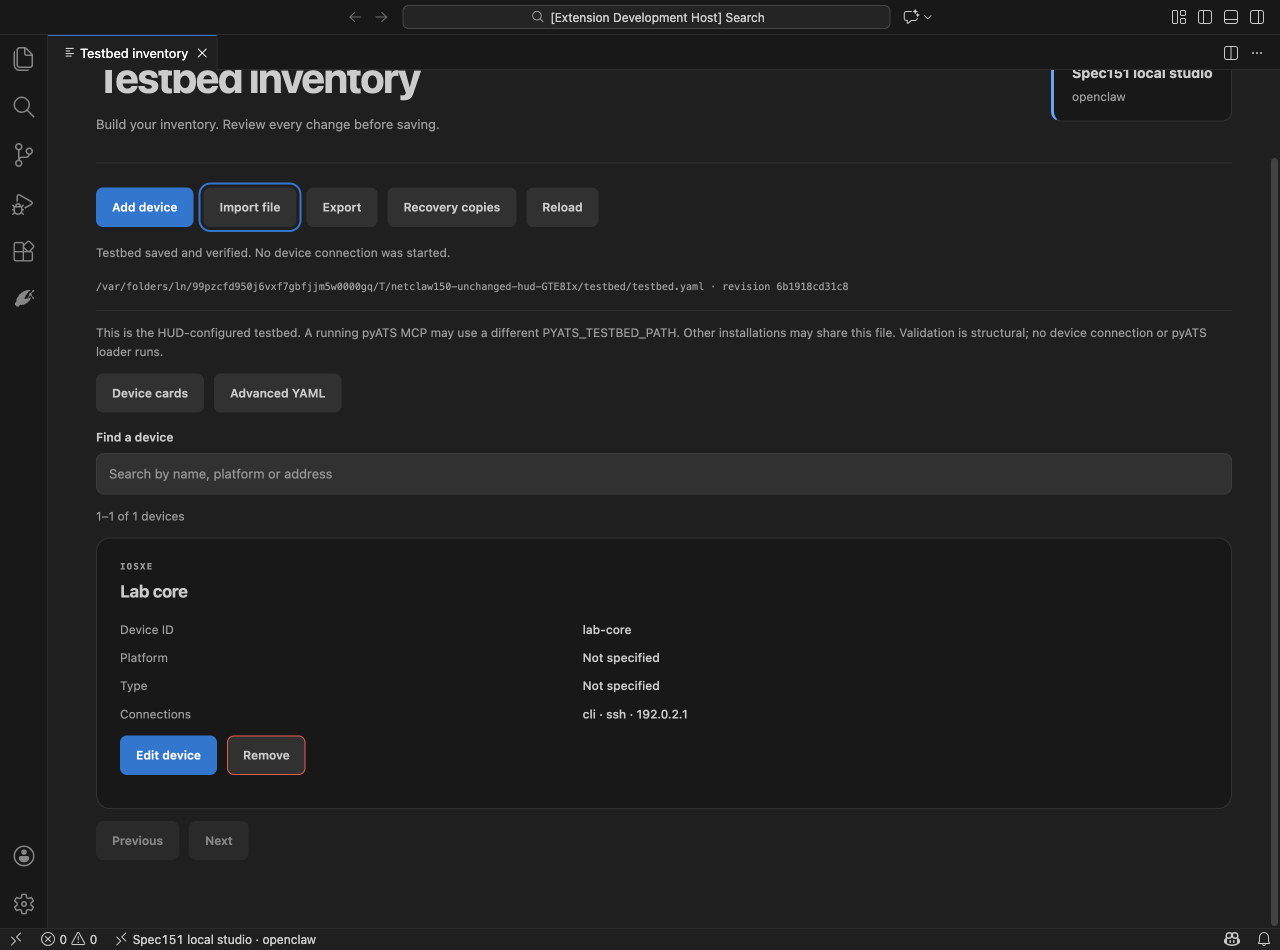
Imports support YAML, equivalent JSON and basic CSV inventory. YAML and JSON can replace a document or merge devices with an explicit conflict choice. CSV is useful when your starting point is a simple list of devices and connections. For example:
id,alias,os,platform,connection,protocol,host,port
lab-core,Lab core,iosxe,cat8000v,cli,ssh,192.0.2.10,22
lab-edge,Lab edge,iosxe,cat8000v,cli,ssh,192.0.2.20,22
These are documentation addresses for an example inventory. CSV carries those basic fields; YAML or JSON is the appropriate format when you need the full document structure. CSV imports preserve advanced fields rather than pretending that a spreadsheet contains the entire testbed.
The important part happens before a save. You get a preview, followed by a native review identifying the destination and the additions, changes or removals. A stale revision is rejected. Private recovery copies support a reviewed restoration, and existing credentials use protected keep markers instead of appearing as literal secrets in the editor.
The destination is the HUD-configured Testbed. A running pyATS MCP can have a different PYATS_TESTBED_PATH, so the source is shown and must be understood. Saving inventory does not connect to a device, execute its configuration, or silently synchronize another file. That makes it possible to prepare the inventory deliberately before starting operational work.
Give every MCP its own setup context
Once you have enough integrations, a single environment file becomes difficult to navigate. The practical question is usually much smaller: “What does this integration need, and which of those settings have I configured?”
Each known integration can now open its own Configure & set up page. You see the relevant fields, descriptions, requirements and any shared use by another integration. Existing values remain private. The default is Keep current value, with Replace and Clear as deliberate choices.
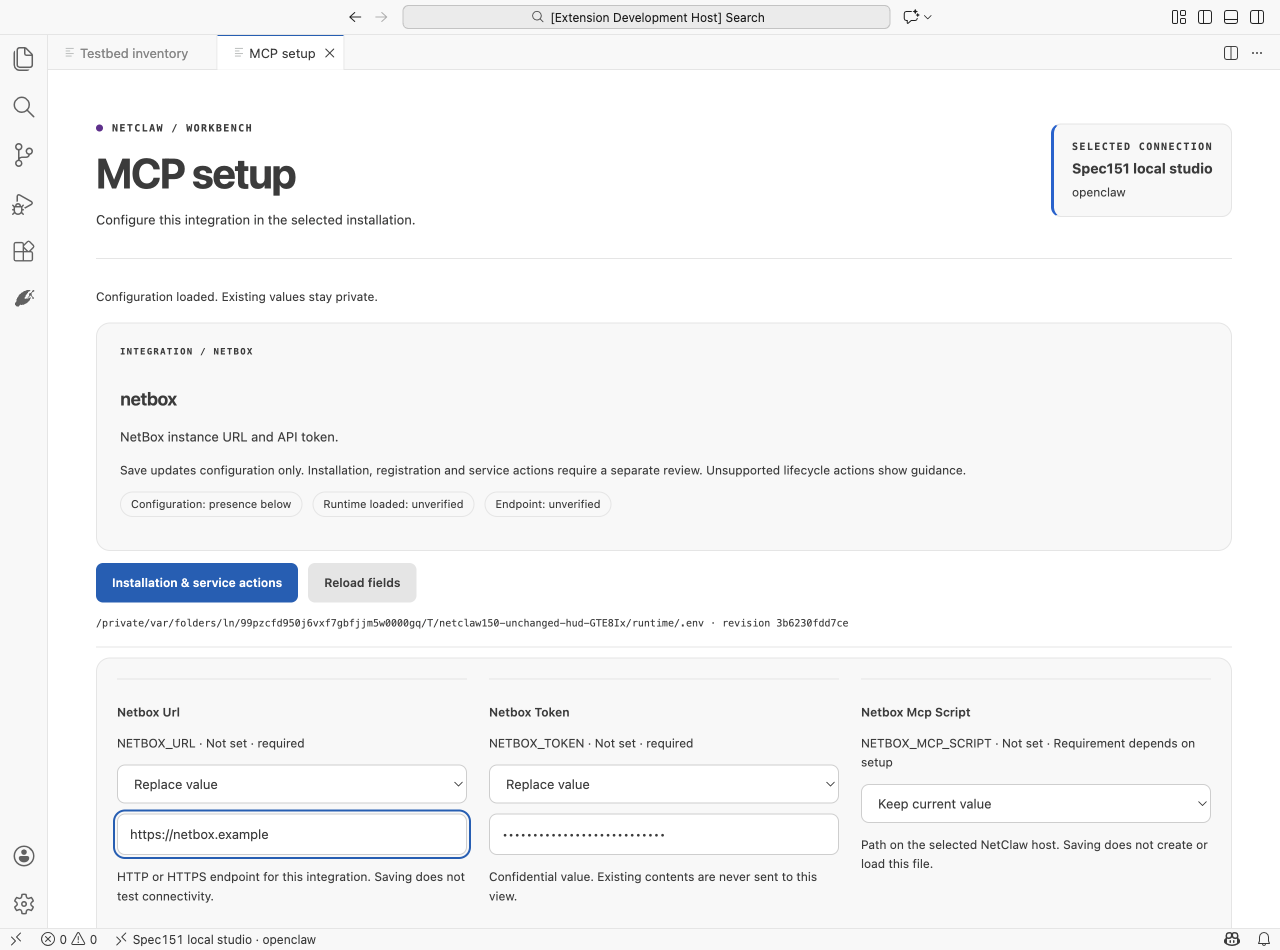
There is also a place for supported setup actions. The extension can review the existing pyATS and GAIT isolated-runtime helpers, canonical OpenClaw MCP registration and an owned N2N federation restart. A broader installer action can prepare a command for you to run. These are specific, supported operations with the target home and effects made visible in the review.
There is no universal “restart every MCP” button because integrations have different owners and lifecycles. Stdio services can be runtime-owned; Hermes registration has different constraints; a custom launch configuration should not be overwritten by an assumption. Unsupported actions stay as guidance.
Saved configuration, a registered service, a loaded runtime and a verified endpoint are different milestones. The interface gives you a way to work through them without collapsing all four into a green check mark.
Put the security perimeter in view
DefenseClaw and OpenShell now have dedicated control pages. This was an important extension of the design: if an operator depends on a security perimeter, they should be able to inspect its rules, understand its scope and review the changes the installed tools support.
DefenseClaw exposes tool allow/block rules, connector scope, observed permissions, redacted configuration YAML and log or alert snapshots. With the qualified 0.8.4 CLI, supported writes use the native connector-scoped tool commands and verify the result through CLI readback. Global fallback and enforcement defaults remain visible but read-only on that version. Other capabilities depend on what the installed CLI actually exposes.
OpenShell exposes the selected gateway and sandbox, observed policy revisions, network-rule cards, permissions and redacted policy YAML. A guided form prepares a network endpoint rule; an advanced network-policy editor covers supported policy structures. Filesystem and process settings are preserved when the network section changes. Gateway-global policies remain outside a sandbox form's write scope.
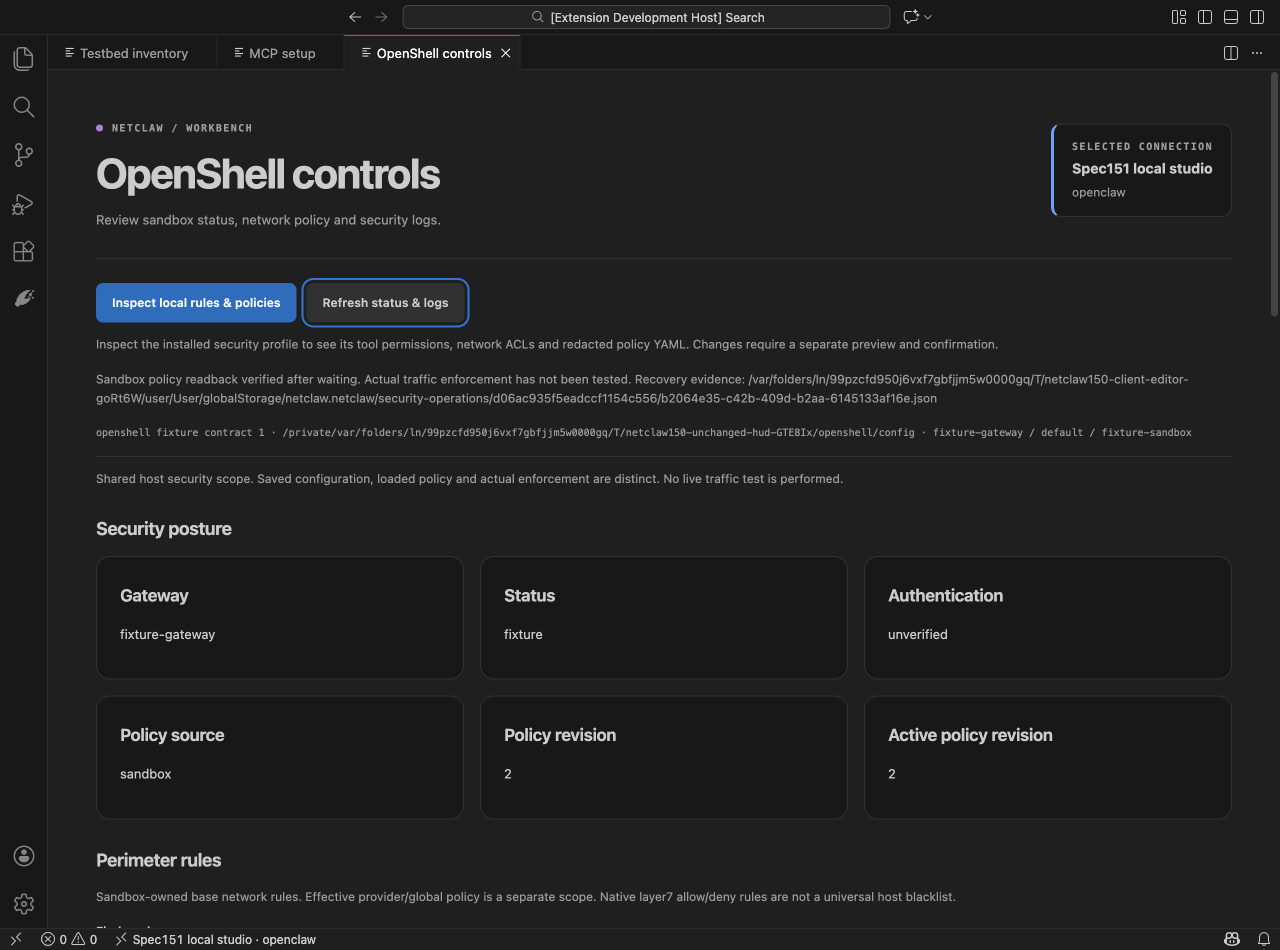
Before applying a supported change, you see a redacted before-and-after review and supply a reason. A change that may weaken protection requires explicit acknowledgment. The interface also identifies shared host scope: a security profile can protect more than the single NetClaw currently selected in the editor.
Logs are bounded snapshots that you refresh and filter. Unknown or interrupted outcomes do not trigger an automatic retry. Native CLI writes also have concurrency limits; another policy editor can race with a change, which is why immediate checks, readback and private recovery evidence matter.
These pages give the operator useful control while keeping the native security tools responsible for their own capabilities and enforcement.
Connect your coding assistant to NetClaw deliberately
There is another useful connection here: Copilot, Claude Code or Codex can work with the NetClaw bound in the extension.
Run NetClaw: Manage Copilot, Claude Code and Codex Access after connecting. The scoped interface exposes status, allowlisted inspection and inert change proposals. Delegated NetClaw requests require a separate opt-in. Copilot discovers the stdio MCP definition through VS Code; the other supported clients receive a reviewed setup command for their host.
An example inspection request is: “Inspect NetClaw's runtime and propose a smaller budget. Do not apply it.” With delegation enabled, you can ask NetClaw to perform work through its existing runtime and tools. Those requests retain the runtime's authorization and approval rules.
The assistant interface does not expose an approval or direct-apply tool. That boundary is useful when you want a coding assistant to help reason about the installation while keeping consequential review with the operator.
Take it for a first run
Start with VS Code 1.102 or later and an existing NetClaw installation. On macOS or Linux, install NetClaw from the Marketplace, or use:
code --install-extension NetClaw.netclaw
On Windows, open the intended distribution through Remote WSL and install the extension in WSL. An existing Remote SSH workspace can host the connection as well. Browser VS Code and native Windows runtime hosting are outside the supported scope.
Start the updated NetClaw HUD in its supported environment. A process started before the new Testbed and MCP routes existed needs to be updated and restarted; installing a new editor extension cannot add routes to that running process. Compatible older HUDs retain inventory reads, with unsupported editing clearly disabled.
Open the NetClaw Activity Bar, choose Add existing NetClaw, enter a recognizable nickname and the HUD API address, and review its identity. Then take a short tour: inspect the overview, open the Testbed, look at one MCP's fields and check the security posture. You can understand what is connected before choosing an operation to run.
Test the package people will actually install
The final acceptance work used the packaged extension, installed in isolated editors. That matters because a development checkout can hide a missing bundled asset or accidentally supply newer code than the package contains.
The WSL qualification recorded 438 passing automated tests across the extension and HUD suites, installed-editor checks and actual DefenseClaw/OpenShell operations against isolated targets. The OpenShell test checked real traffic being denied, then allowed by a reviewed rule, then denied again after restoration.
The exact same VSIX then passed native Mac acceptance on VS Code 1.108.0: 14 experience checks, 149 layout cases and 42 screenshots, including Testbed, MCP configuration, both security menus and reviewed fixture writes. Every installed payload file was compared with the package. Additional live Mac checks connected it to the existing installation through the updated HUD without changing the owner's configuration.
The platform distinction remains explicit. Mac security mutations used isolated CLI fixtures; real vendor enforcement was tested on WSL. The qualification record records those scopes and the optional cached-embedding RAG test skipped in the Mac run. A test result is most useful when you can see exactly what it establishes.
The larger lesson from this release is that good operations software needs both useful capabilities and a clear place to work with them. A better label helps someone connect to the right host. A preview makes an inventory change understandable. A scoped settings card makes an integration easier to configure. A policy page makes the security perimeter something an operator can inspect and discuss.
I want NetClaw to meet network engineers where they are already building. Now, that includes Visual Studio Code.
Get started: Install the VS Code extension · Read the extension guide · Explore NetClaw · View the source